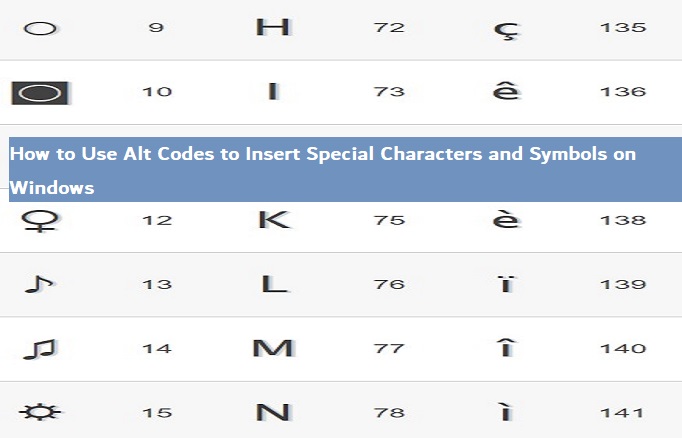
Alt codes allow you to quickly type special characters and symbols on a Windows computer which aren’t readily accessible through traditional typing techniques. Alt codes are combinations of numbers entered using the Alt key on your keyboard; once released after typing them out, your computer will insert that special character or symbol directly into your document.
Key Takeaway
- Alt codes allow you to quickly insert special characters and symbols that cannot be typed easily using standard keyboard keys. To utilize them, hold down the Alt key while entering an alt code number from your numeric keypad – release this button after typing to insert a symbol into the document.
- Alt codes make inserting special characters like ©, TM, ¦, and ± straightforward and efficient. Furthermore, accent marks and letters in foreign languages can also be typed using alt codes – there are literally hundreds of alt codes available so that virtually any symbol imaginable can be added effortlessly!
How Alt Codes Work
An alt code is a numerical code assigned to a specific character. To type an alt code:
- Ensure the Num Lock is turned on. You’ll usually see a light illuminated on your keyboard if it’s enabled.
- Hold down the Alt key on your keyboard.
- While holding down Alt, type the alt code on your numeric keypad. Alt codes can only be entered using the numeric keypad to the right of your keyboard.
- Release the Alt key, and the corresponding character will appear.
For example, to type a degree symbol (°) using alt codes, you would:
- Turn on Num Lock.
- Hold down Alt.
- Type 0176 on your numeric keypad.
- Release Alt.
The degree symbol ° will appear in your document at the location of your cursor.
Where to Find Alt Codes for Special Characters
There are hundreds of alt codes assigned to different characters and symbols. Here are some of the most common sources to find alt codes when you need to insert a specific special character:
- Alt code resource sites: Comprehensive alt code directories like AltCodes.net allow you to easily look up alt codes for most special characters.
- Character map: Windows includes a Character Map program that shows common alt codes and symbols. Open it by pressing Windows + R and typing
charmap. - Online charts: Many alt code charts and tables can be found online with popular special characters and their corresponding numbers.
- Manuals and documentation: Some software manuals and documentation, especially for technical applications, will list relevant alt codes you can use.
When you find the alt code for the character you want to type, make sure to test it right away in a document. This allows you to verify the code before using it for important work.
Tips for Using Alt Codes Effectively
Here are some helpful tips to keep in mind when using alt codes:
- Make sure Num Lock is on – Alt codes only work when you have this enabled.
- Use your numeric keypad to type the numbers – Alt codes don’t work on the top row of your keyboard.
- Hold down the Alt key while typing the whole code – Don’t release it until you’re done entering the sequence of numbers.
- Double check alt codes – It’s easy to mistype a number, so verify the code inserts the correct symbol before using it.
- Adjust your font – Some alt code characters only work with certain fonts that support special characters.
- Try different numbers – If an alt code doesn’t work, try similar numbers for that symbol from other sources.
With practice, typing alt codes will feel quick and natural. Always double-check that the right symbol or character appears before continuing your work.
Frequently Used Alt Codes
Here are some of the most popular alt codes you can use to insert special characters:
Currency Symbols
| Symbol | Alt Code |
|---|---|
| € Euro | 0128 |
| £ Pound | 0163 |
| ¢ Cent | 0162 |
| ¥ Yen | 0165 |
Math Operators
| Symbol | Alt Code |
|---|---|
| ± Plus-Minus | 0177 |
| × Multiplication | 0215 |
| ÷ Division | 0247 |
| √ Square Root | 08730 |
Punctuation Marks
| Symbol | Alt Code |
|---|---|
| © Copyright | 0169 |
| ® Registered | 0174 |
| TM Trademark | 0153 |
| ¦ Broken Bar | 0166 |
| • Bullet | 0149 |
Fractions
| Symbol | Alt Code |
|---|---|
| 1⁄2 Fraction | 0189 |
| 1⁄4 Fraction | 0188 |
| 3⁄4 Fraction | 0190 |
Accent Marks and Letters
| Symbol | Alt Code |
|---|---|
| á | 0225 |
| è | 0232 |
| ñ | 0241 |
| ç | 0231 |
This table contains some of the most useful alt codes, but there are many more available. Refer to comprehensive alt code lists and tools when you need to insert more obscure symbols and characters.
How to Use Alt Codes for Letters
In addition to symbols and special characters, you can use alt codes to type letters from foreign languages or letters with accent marks.
To type alt code letters:
- Turn on Num Lock.
- Hold down Alt and type the alt code.
- Release Alt to insert the letter.
For example, to type an uppercase Á, you would:
- Enable Num Lock.
- Hold down Alt.
- Type 0193 on your keypad.
- Release Alt.
The letter Á will appear in your document.
Here are some common alt codes for typing letters:
| Letter | Alt Code |
|---|---|
| Á | 0193 |
| á | 0225 |
| À | 0192 |
| È | 0200 |
| Ø | 0216 |
| ñ | 0241 |
You can find alt codes for typing letters in just about any language with accents and diacritical marks. This provides a quick way to insert foreign letters without having to change your keyboard layout.
How to Type Alt Codes on a Laptop
Since most laptops don’t have a numeric keypad, typing alt codes requires an extra step. But don’t worry – you can still enter any alt code using these methods:
- Enable Num Lock on your laptop keyboard. On many laptops, you can enable Num Lock by holding FN and pressing one of your top row number keys, usually labeled as ScrLk or NumLk. This will overlay the numbers onto your other keys temporarily.
- Connect an external keyboard. Plug in a keyboard with a dedicated numeric keypad. This allows you to use alt codes normally.
- Use the Character Map. Open Windows Character Map and copy-paste letters and symbols instead of typing alt codes.
- Use the on-screen keyboard. Pull up the on-screen keyboard in Windows by pressing Windows + R and typing
osk. This provides an accessible numeric keypad you can use to type alt codes.
With a little preparation, you can use alt codes to insert special characters and symbols into documents even without a physical numeric keypad. Don’t let your laptop limit your use of alt codes!
Full Windows Alt codes, characters, symbols
| Symbol | AltCode | Symbol | AltCode | Symbol | AltCode |
|---|---|---|---|---|---|
| ☺ | 1 | @ | 64 | ⌂ | 127 |
| ☻ | 2 | A | 65 | Ç | 128 |
| ♥ | 3 | B | 66 | ü | 129 |
| ♦ | 4 | C | 67 | é | 130 |
| ♣ | 5 | D | 68 | â | 131 |
| ♠ | 6 | E | 69 | ä | 132 |
| • | 7 | F | 70 | à | 133 |
| ◘ | 8 | G | 71 | å | 134 |
| ○ | 9 | H | 72 | ç | 135 |
| ◙ | 10 | I | 73 | ê | 136 |
| ♂ | 11 | J | 74 | ë | 137 |
| ♀ | 12 | K | 75 | è | 138 |
| ♪ | 13 | L | 76 | ï | 139 |
| ♫ | 14 | M | 77 | î | 140 |
| ☼ | 15 | N | 78 | ì | 141 |
| ► | 16 | O | 79 | Ä | 142 |
| ◄ | 17 | P | 80 | Å | 143 |
| ↕ | 18 | Q | 81 | É | 144 |
| ‼ | 19 | R | 82 | æ | 145 |
| ¶ | 20 | S | 83 | Æ | 146 |
| Symbol | AltCode | Symbol | AltCode | Symbol | AltCode |
|---|---|---|---|---|---|
| ╛ | 190 | ² | 253 | Â | 0194 |
| ┐ | 191 | ■ | 254 | Ã | 0195 |
| └ | 192 | spc | 255 | Ä | 0196 |
| ┴ | 193 | € | 0128 | Å | 0197 |
| ┬ | 194 | ‚ | 0130 | Æ | 0198 |
| ├ | 195 | ƒ | 0131 | Ç | 0199 |
| ─ | 196 | „ | 0132 | È | 0200 |
| ┼ | 197 | … | 0133 | É | 0201 |
| ╞ | 198 | † | 0134 | Ê | 0202 |
| ╟ | 199 | ‡ | 0135 | Ë | 0203 |
| ╚ | 200 | ˆ | 0136 | Ì | 0204 |
| ╔ | 201 | ‰ | 0137 | Í | 0205 |
| ╩ | 202 | Š | 0138 | Î | 0206 |
| ╦ | 203 | ‹ | 0139 | Ï | 0207 |
| ╠ | 204 | Œ | 0140 | Ð | 0208 |
| ═ | 205 | Ž | 0142 | Ñ | 0209 |
| ╬ | 206 | ‘ | 0145 | Ò | 0210 |
| ╧ | 207 | ’ | 0146 | Ó | 0211 |
| ╨ | 208 | “ | 0147 | Ô | 0212 |
| ╤ | 209 | ” | 0148 | Õ | 0213 |
| Symbol | AltCode | Symbol | AltCode | Symbol | AltCode |
|---|---|---|---|---|---|
| § | 21 | T | 84 | ô | 147 |
| ▬ | 22 | U | 85 | ö | 148 |
| ↨ | 23 | V | 86 | ò | 149 |
| ↑ | 24 | W | 87 | û | 150 |
| ↓ | 25 | X | 88 | ù | 151 |
| → | 26 | Y | 89 | ÿ | 152 |
| ← | 27 | Z | 90 | Ö | 153 |
| ∟ | 28 | [ | 91 | Ü | 154 |
| ↔ | 29 | \ | 92 | ¢ | 155 |
| ▲ | 30 | ] | 93 | £ | 156 |
| ▼ | 31 | ^ | 94 | ¥ | 157 |
| spc | 32 | _ | 95 | ₧ | 158 |
| ! | 33 | ` | 96 | ƒ | 159 |
| “ | 34 | a | 97 | á | 160 |
| # | 35 | b | 98 | í | 161 |
| $ | 36 | c | 99 | ó | 162 |
| % | 37 | d | 100 | ú | 163 |
| & | 38 | e | 101 | ñ | 164 |
| ‘ | 39 | f | 102 | Ñ | 165 |
| ( | 40 | g | 103 | ª | 166 |
| Symbol | AltCode | Symbol | AltCode | Symbol | AltCode |
|---|---|---|---|---|---|
| ╥ | 210 | • | 0149 | Ö | 0214 |
| ╙ | 211 | – | 0150 | × | 0215 |
| ╘ | 212 | — | 0151 | Ø | 0216 |
| ╒ | 213 | ˜ | 0152 | Ù | 0217 |
| ╓ | 214 | ™ | 0153 | Ú | 0218 |
| ╫ | 215 | š | 0154 | Û | 0219 |
| ╪ | 216 | › | 0155 | Ü | 0220 |
| ┘ | 217 | œ | 0156 | Ý | 0221 |
| ┌ | 218 | ž | 0158 | Þ | 0222 |
| █ | 219 | Ÿ | 0159 | ß | 0223 |
| ▄ | 220 | spc | 0160 | à | 0224 |
| ▌ | 221 | ¡ | 0161 | á | 0225 |
| ▐ | 222 | ¢ | 0162 | â | 0226 |
| ▀ | 223 | £ | 0163 | ã | 0227 |
| α | 224 | ¤ | 0164 | ä | 0228 |
| ß | 225 | ¥ | 0165 | å | 0229 |
| Γ | 226 | ¦ | 0166 | æ | 0230 |
| π | 227 | § | 0167 | ç | 0231 |
| Σ | 228 | ¨ | 0168 | è | 0232 |
| σ | 229 | © | 0169 | é | 0233 |
| Symbol | AltCode | Symbol | AltCode | Symbol | AltCode |
|---|---|---|---|---|---|
| ) | 41 | h | 104 | º | 167 |
| * | 42 | i | 105 | ¿ | 168 |
| + | 43 | j | 106 | ⌐ | 169 |
| , | 44 | k | 107 | ¬ | 170 |
| – | 45 | l | 108 | ½ | 171 |
| . | 46 | m | 109 | ¼ | 172 |
| / | 47 | n | 110 | ¡ | 173 |
| 0 | 48 | o | 111 | « | 174 |
| 1 | 49 | p | 112 | » | 175 |
| 2 | 50 | q | 113 | ░ | 176 |
| 3 | 51 | r | 114 | ▒ | 177 |
| 4 | 52 | s | 115 | ▓ | 178 |
| 5 | 53 | t | 116 | │ | 179 |
| 6 | 54 | u | 117 | ┤ | 180 |
| 7 | 55 | v | 118 | ╡ | 181 |
| 8 | 56 | w | 119 | ╢ | 182 |
| 9 | 57 | x | 120 | ╖ | 183 |
| : | 58 | y | 121 | ╕ | 184 |
| ; | 59 | z | 122 | ╣ | 185 |
| < | 60 | { | 123 | ║ | 186 |
| Symbol | AltCode | Symbol | AltCode | Symbol | AltCode |
|---|---|---|---|---|---|
| µ | 230 | ª | 0170 | ê | 0234 |
| τ | 231 | « | 0171 | ë | 0235 |
| Φ | 232 | ¬ | 0172 | ì | 0236 |
| Θ | 233 | ® | 0174 | í | 0237 |
| Ω | 234 | ¯ | 0175 | î | 0238 |
| δ | 235 | ° | 0176 | ï | 0239 |
| ∞ | 236 | ± | 0177 | ð | 0240 |
| φ | 237 | ² | 0178 | ñ | 0241 |
| ε | 238 | ³ | 0179 | ò | 0242 |
| ∩ | 239 | ´ | 0180 | ó | 0243 |
| ≡ | 240 | µ | 0181 | ô | 0244 |
| ± | 241 | ¶ | 0182 | õ | 0245 |
| ≥ | 242 | · | 0183 | ö | 0246 |
| ≤ | 243 | ¸ | 0184 | ÷ | 0247 |
| ⌠ | 244 | ¹ | 0185 | ø | 0248 |
| ⌡ | 245 | º | 0186 | ù | 0249 |
| ÷ | 246 | » | 0187 | ú | 0250 |
| ≈ | 247 | ¼ | 0188 | û | 0251 |
| ° | 248 | ½ | 0189 | ü | 0252 |
| ∙ | 249 | ¾ | 0190 | ý | 0253 |
| Symbol | AltCode | Symbol | AltCode | Symbol | AltCode |
|---|---|---|---|---|---|
| = | 61 | | | 124 | ╗ | 187 |
| > | 62 | } | 125 | ╝ | 188 |
| ? | 63 | ~ | 126 |
| Symbol | AltCode | Symbol | AltCode | Symbol | AltCode |
|---|---|---|---|---|---|
| · | 250 | ¿ | 0191 | þ | 0254 |
| √ | 251 | À | 0192 | ÿ | 0255 |
| ⁿ | 252 | Á | 0193 |
Common Alt Code Questions and Issues
Here are answers to some frequently asked questions about typing alt codes:
Why don’t my alt codes work?
The most common reason alt codes don’t work is that you don’t have Num Lock enabled. Make sure the Num Lock light is on your keyboard before typing alt codes. Also, use your numeric keypad, not the numbers along the top of your keyboard.
What do I do if I release the Alt key too soon?
If you let go of Alt before typing the whole code, you’ll only insert the numbers. Just reposition your cursor and re-enter the alt code correctly.
Can I type alt codes on Mac or Linux?
Unfortunately, alt codes only work on Windows computers. For other operating systems, use a character map tool or Unicode Hex codes.
Why does the wrong symbol appear when I enter an alt code?
Occasionally resource sites and charts provide incorrect alt codes. Verify you’re using the right code for your desired character. Also, some codes only work in certain fonts.
How do I type alt codes without using the numeric keypad?
On laptops and keyboards without a numeric keypad, use an external keyboard, an on-screen keyboard utility, Character Map, or enable Num Lock on your main keyboard.
Don’t let a lack of numeric keypad deter you – with a few extra steps, you can use alt codes on any Windows PC.
Conclusion
With this guide, you now have the knowledge to instantly insert special characters and symbols by typing alt codes. From foreign letters to math symbols to accent marks, alt codes can help you easily type hundreds of different characters.
To recap, follow these steps whenever you want to use an alt code:
- Turn on Num Lock on your keyboard.
- Find and note down the alt code for the character you want.
- Hold down Alt and type the code on your numeric keypad.
- Release Alt to insert the symbol or letter into your document.
It may take some practice to memorize and accurately type the codes. But soon you’ll find yourself seamlessly integrating special characters into documents of all kinds. With the power to insert obscure symbols at your fingertips, get ready to level up your typing skills!
Discover more from Cloudorian — Android, Samsung & Windows How-To Guides
Subscribe to get the latest posts sent to your email.
