

Microsoft just made .md files first-class citizens inside SharePoint and OneDrive. Native Markdown support launched in general availability on April 21, 2026, across consumer and commercial Microsoft 365 accounts. You can now view, edit, and create Markdown files directly in the browser — no third-party tools needed.
Key Takeaways
- SharePoint and OneDrive now render, edit, and support creation of
.mdfiles natively. - A new Agents Assets library stores AI memory as Markdown files your team can inspect and edit.
- Markdown files sync across Teams, Outlook, and the browser once saved to SharePoint or OneDrive.
- Built-in versioning and governance apply to
.mdfiles just like any other Microsoft 365 file.
Markdown is a plain-text formatting language that uses symbols to define headings, lists, code blocks, and links. Developers and technical writers have relied on it for years. Microsoft now brings that same experience into the Microsoft 365 file ecosystem.
According to Microsoft’s official announcement, .md files now behave like any other Microsoft 365 file. That means the same actions, commands, and governance apply to Markdown as to Word documents or PDFs.
What the New Markdown Viewer Does
Modern Rendering in the Browser
The updated .md viewer renders Markdown with modern typography directly in your browser. Tables, checkboxes, links, and code blocks all display correctly. Syntax highlighting works inside code blocks, and changes reflect in real time.
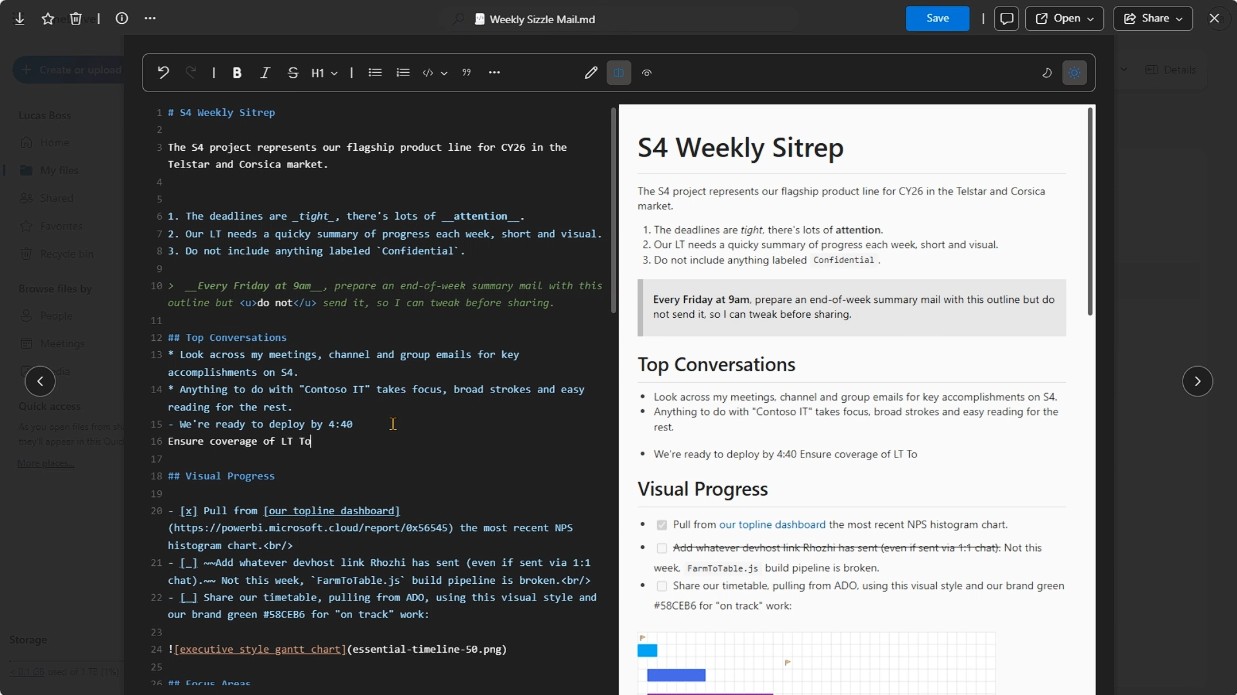
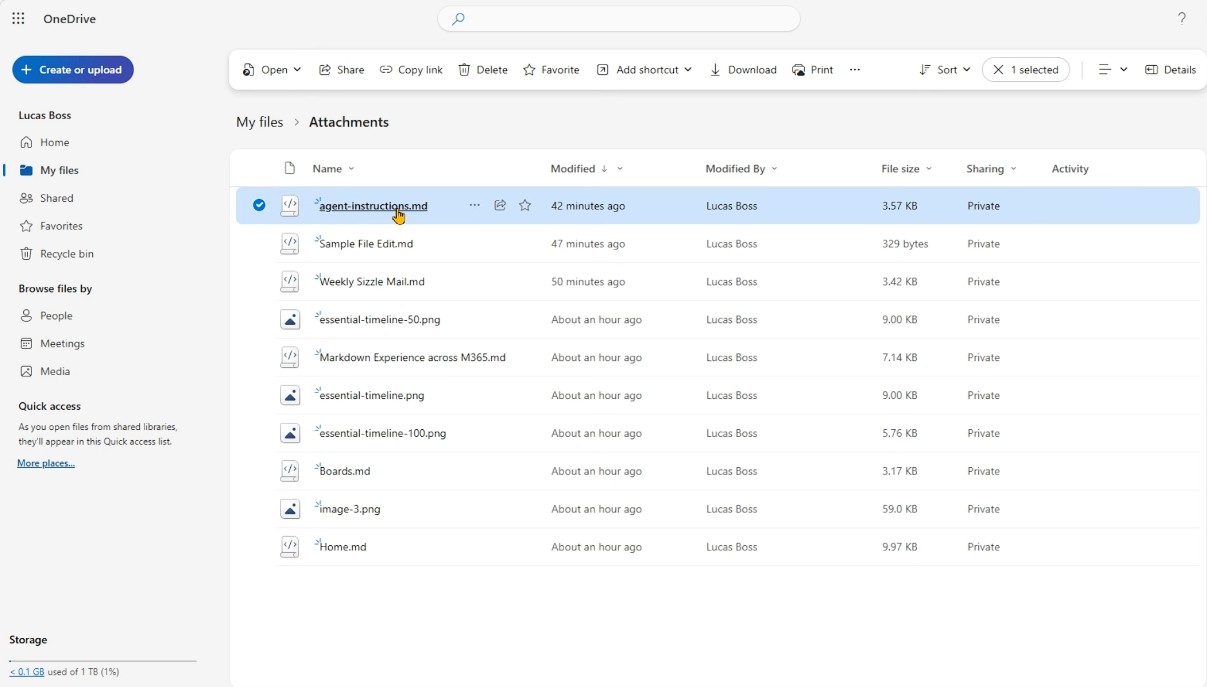
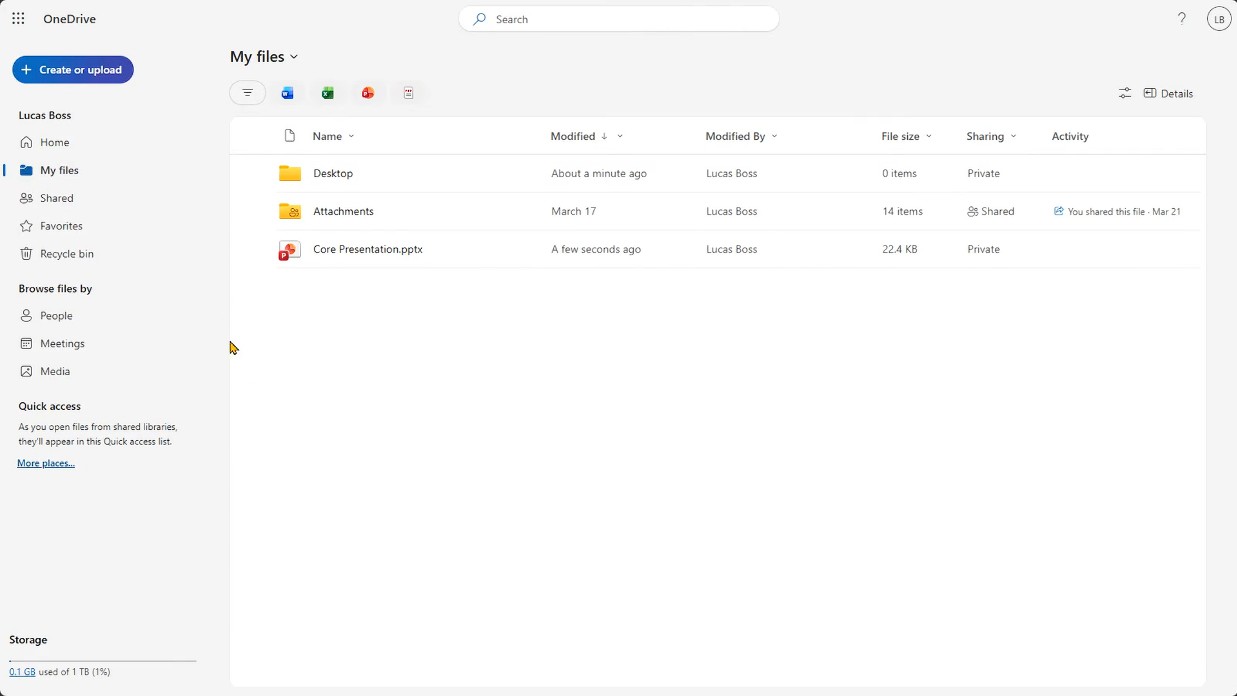
This matters because the old viewer styled .md files poorly. The new experience replaces that entirely. You get a clean reading surface without opening a separate app.
Preview Mode for Non-Technical Users
Not everyone on your team writes Markdown syntax. Preview mode solves that by showing a rendered, readable version of the file. Team members can review .md content without knowing a single formatting rule.
This makes Markdown practical for mixed teams, not just engineers. Project managers, content editors, and operations staff can all open and read .md files without friction.
The native editor gives you three modes: View, Edit, and Split. Split mode shows the raw syntax on the left and the rendered output on the right in real time.
A formatting toolbar covers headings, code blocks, links, images, and lists. You do not need to write syntax manually. Click the toolbar option and the editor inserts the correct Markdown for you.
Are you still downloading .md files to edit them locally? That step is now unnecessary. Open the file directly in SharePoint or OneDrive, edit it, and save. The version history captures every change automatically.
Follow these steps to create your first .md file:
- Open your OneDrive or SharePoint document library.
- Click the New or Upload button.
- Select Markdown file from the creation menu.
- Name the file and start editing in the browser.
You can also find existing .md files faster using the new file type filter pills. These appear across Home, My Files, and Document Libraries. Filter by Markdown to isolate all .md content in your library at once.
The Agents Assets Library
Microsoft is using Markdown as the storage format for AI memory inside SharePoint. A new Agents Assets library stores team preferences and learned behaviors as .md files. AI in SharePoint reads these files to apply the right context when carrying out work.
Your team can open the Agents Assets library, read what the AI remembers, and edit it directly. You control the memory. You set the rules. The AI acts on whatever those .md files contain.
This connects to a broader shift in how AI tools store context. For more on how AI platforms use personal memory to improve responses, see how Gemini Personal Intelligence ends generic AI prompts — a parallel development unfolding on the Google side right now.
One File, Every Surface
A .md file saved to OneDrive or SharePoint flows everywhere Microsoft 365 content appears. Teams channels, Outlook, and shared browser links all render the same file. You author once and the content stays current across every access point.
Microsoft confirmed that AI skills in SharePoint rely on this Agents Assets library structure. The library powers group memory for entire SharePoint sites, not just individual users.
Why This Matters for Teams Working With AI
SharePoint now serves over one billion users and processes more than two billion pieces of content every day. As AI agents produce and update more files automatically, teams need a governed place to store that content.
Markdown files are the natural container for AI instructions, preferences, and process rules. They are plain text, portable, and easy to read without specialized software. Putting them inside SharePoint and OneDrive gives them the same governance, versioning, and access controls as any other enterprise file.
Have you considered what your AI agent actually remembers between sessions? With Markdown support in SharePoint and OneDrive, the answer is now a file you can open, read, and change whenever you need to.
Start Building Your Team’s AI Knowledge Base Today
Open a SharePoint document library or OneDrive folder and create a new .md file using the New button. Write a short document capturing your team’s current workflow rules or AI preferences. Save it, share the link, and ask your team to review it in the browser.
That file becomes the starting point for your team’s AI memory inside Microsoft 365. As Microsoft expands agent capabilities across SharePoint and OneDrive, .md files stored there will carry increasing weight. The teams that start building that knowledge base now will have a clear head start.
Discover more from Cloudorian — Android, Samsung & Windows How-To Guides
Subscribe to get the latest posts sent to your email.



