

Last Updated on 11 Sep, 2026 by Montel Anthony
Most people assume a website is down when Chrome refuses to load it. Most of the time, that assumption is wrong — and the fix takes under five minutes. The real cause of some websites not opening in browser is almost always sitting inside your own machine: a stale DNS entry, a rogue extension, or a corrupted cache telling Chrome the wrong thing about a perfectly healthy site.
This guide covers every fix, in the right order, so you stop guessing and start solving.
Why Only Some Websites Fail to Load
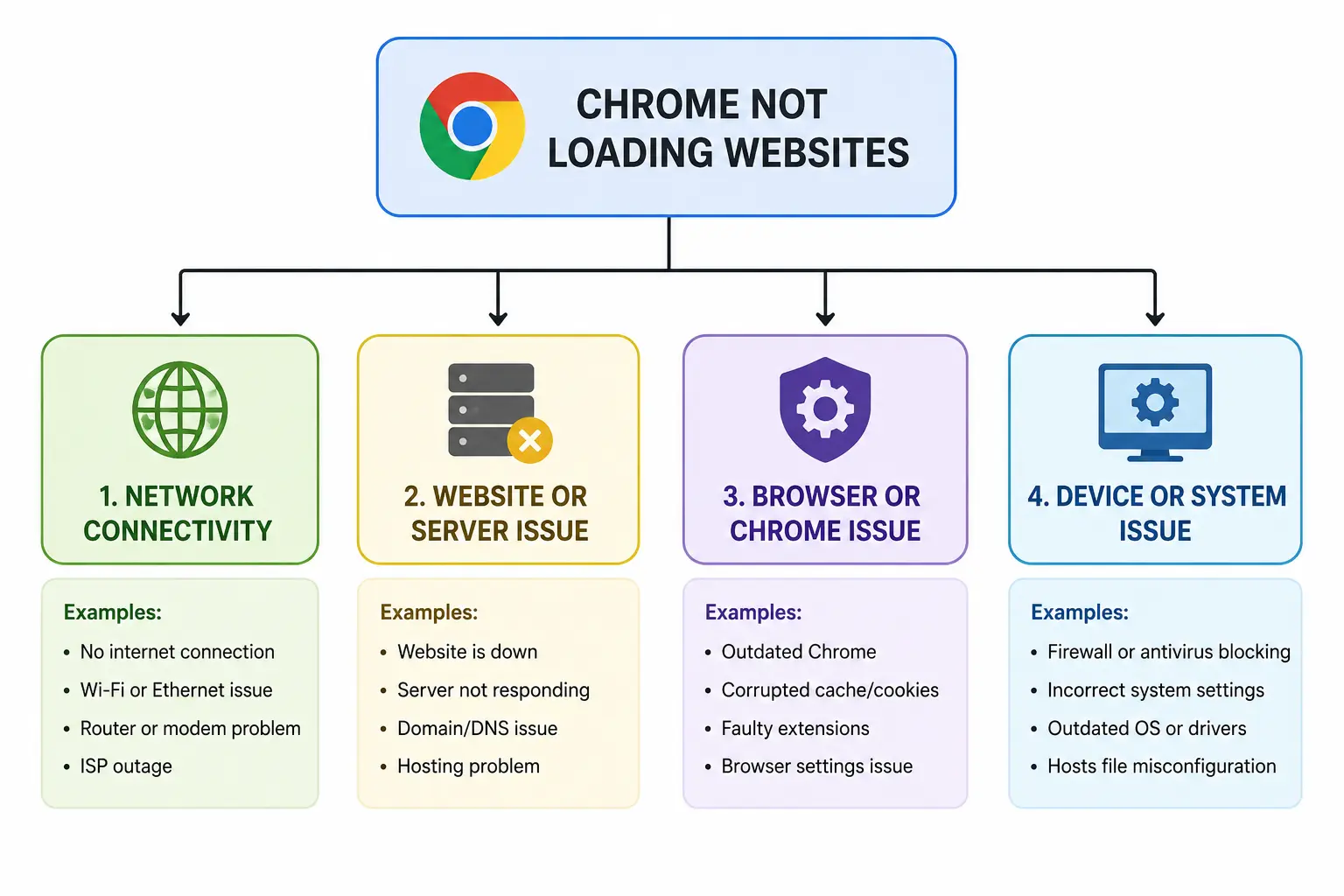
The selective nature of the problem is the first clue most people miss. When all websites refuse to load, your internet connection is broken. When only specific sites refuse to load — and others work fine on the same connection — the problem is scoped to your browser, your DNS layer, or occasionally the target website itself.
A server might stop responding for various reasons, like a power outage, a DDoS attack, or a hardware issue. Data centers have backup options that reduce downtime, but it still happens. In those cases, you have to wait until the site owner resolves the problem. If your friend can visit the same site and you cannot, the browser is likely the culprit. This happens mostly because of the browser’s cache, cookies, or certificate errors. In that case, you need to reset or reinstall the browser. Another common reason some websites do not open is browser add-ons or extensions. Several extensions interfere with the connection to website servers and block certain elements from loading.
Knowing which layer is failing before you start fixes everything. You stop clearing cache when the real problem is a blocked DNS server. You stop disabling extensions when the real problem is an outdated Chrome build.
What You Need Before You Start Fixing
You do not need technical experience to follow this guide. You do need a few things confirmed before you start.
Device requirements:
- A Windows 10 or Windows 11 PC, a Mac running macOS Ventura or later, or an Android device running Chrome 120 or above
- An active internet connection — even if it feels unreliable, confirm it loads at least one other site
- Administrator access on your device for the OS-level DNS flush steps
Browser requirements:
- Google Chrome version 120 or above (check at
chrome://settings/help) - Firefox 120+ or Edge 120+ if you want to cross-test on another browser
- Ability to open the Chrome address bar and type internal Chrome URLs like
chrome://net-internals/#dns
Time required:
- Most fixes: under 3 minutes each
- Full sequence from Step 1 to Step 11: approximately 25 minutes
PRO TIP: Before touching any setting, write down exactly which websites fail and which ones load normally. This list becomes your test case after each fix. Without it, you will not know which step actually solved the problem.
How to Check Whether the Problem Is Your Browser or the Website
This diagnostic step is missing from nearly every guide on the topic. Skipping it wastes time. Run both checks before touching any setting inside Chrome.
Test the Site on Another Device or Network
Open the same website on your phone using mobile data — not your home Wi-Fi. If the site opens on mobile data but not on your PC, the problem is either your home network or your PC’s browser.
If the site fails on mobile data too, the site itself is likely down or geo-restricted in your region. No browser fix will solve that.
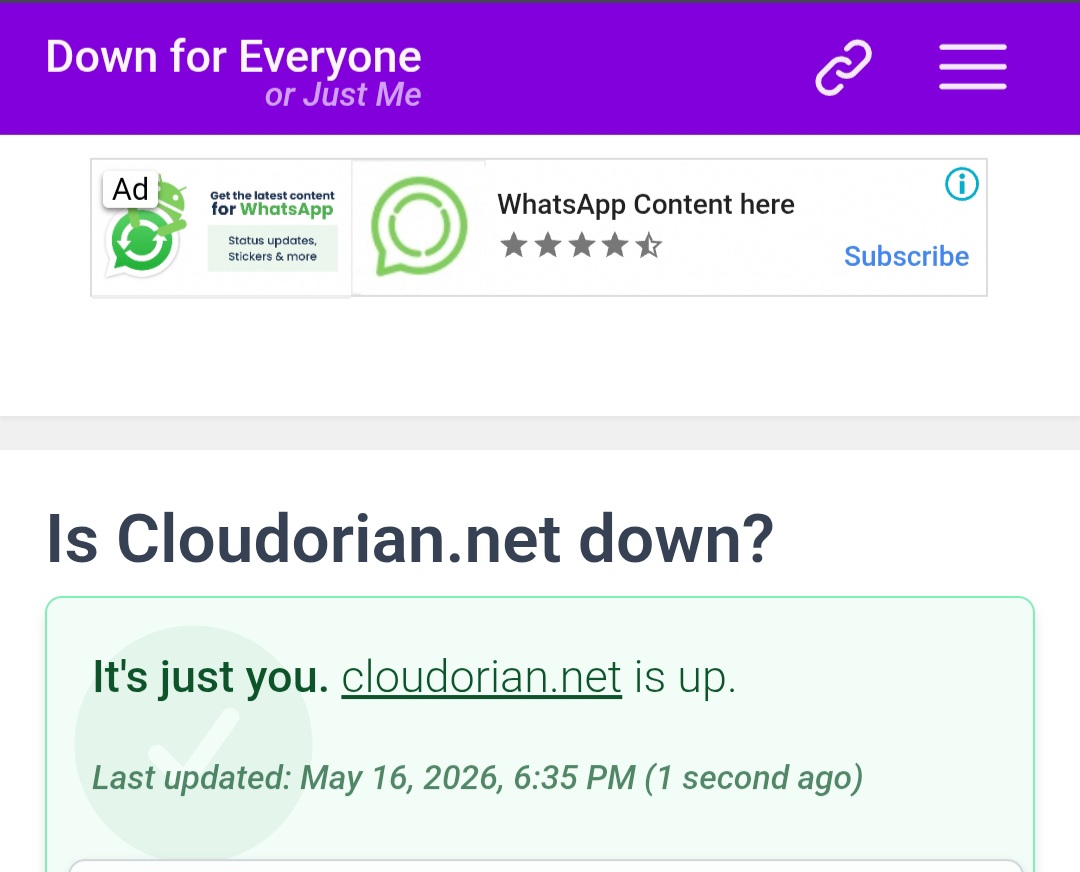
Use a Website Status Checker
Go to downforeveryoneorjustme.com or isitdownrightnow.com. Type the address of the site that refuses to load. These tools check the site from multiple global servers in seconds.
If the checker confirms the site is up, the problem is on your end. Keep reading. If the checker shows the site is down for everyone, close this guide and wait it out.
Step-by-Step Fixes for Websites Not Opening in Chrome and Other Browsers
Work through these steps in the order shown. Each one is faster than the last and eliminates a specific cause. Do not skip ahead.
Step 1 — Check and Reset Your Internet Connection
Make sure your device is connected to the internet on either Wi-Fi or ethernet. Check if your modem and router are working properly. You may need to reboot both, or contact your internet service provider (ISP).
How to reboot your router correctly:
- Unplug the router power cable from the wall.
- Wait 30 full seconds — not five, not ten.
- Plug it back in and wait 60 seconds for the connection to re-establish.
- Try the failing website again.
Chrome failing to load pages may come down to something as simple as unstable or lost internet connection. Make sure you have an active data plan and restart your internet connection. Also, try loading other browsers and apps like Firefox and WhatsApp. If those do not work, the internet connection is most likely the culprit.
Step 2 — Test in Incognito Mode
Incognito mode runs Chrome without extensions and ignores stored cookies. It is the fastest way to tell whether your regular Chrome profile is the problem.
Press Ctrl + Shift + N on Windows or Cmd + Shift + N on Mac. Chrome opens a new Incognito window. Try the failing website in that window.
If your connection or loading issue is fixed in Incognito mode, exit Incognito mode and proceed to disable extensions or delete your browsing data.
If the site loads in Incognito but not in your normal window, the cause is either an extension or your stored cache and cookies. Steps 3 and 6 below solve both.
[IMAGE: Chrome Incognito mode window with a website loading successfully. Alt text: “Google Chrome incognito mode window showing website loading fix”]Step 3 — Clear Cache and Cookies
Sometimes the issue is due to compatibility problems or cache files. A simple way to quickly solve the problem of some websites not opening in Chrome is to clear app cache and cookies.
Steps to clear cache and cookies in Chrome:
- Open Chrome and press Ctrl + Shift + Delete (Windows) or Cmd + Shift + Delete (Mac).
- Set the time range to All time.
- Check both Cookies and other site data and Cached images and files.
- Click Clear data.
- Restart Chrome and test the failing website.
To quickly open “Delete browsing data” settings, in the address bar, enter Delete browsing data.
WARNING: Clearing cookies will sign you out of every website where you are currently logged in. Make sure you know your login credentials before clearing.
Step 4 — Flush Chrome’s DNS Cache
This step targets a problem that most generic guides either skip entirely or explain incorrectly. Chrome maintains its own internal DNS cache, completely separate from your operating system’s DNS cache.
DNS cache is temporary storage where Chrome saves domain-to-IP mappings to speed up browsing. Clearing DNS cache helps resolve many common issues. Even if the site is working, Chrome may use outdated DNS. Cached DNS may point to an incorrect IP.
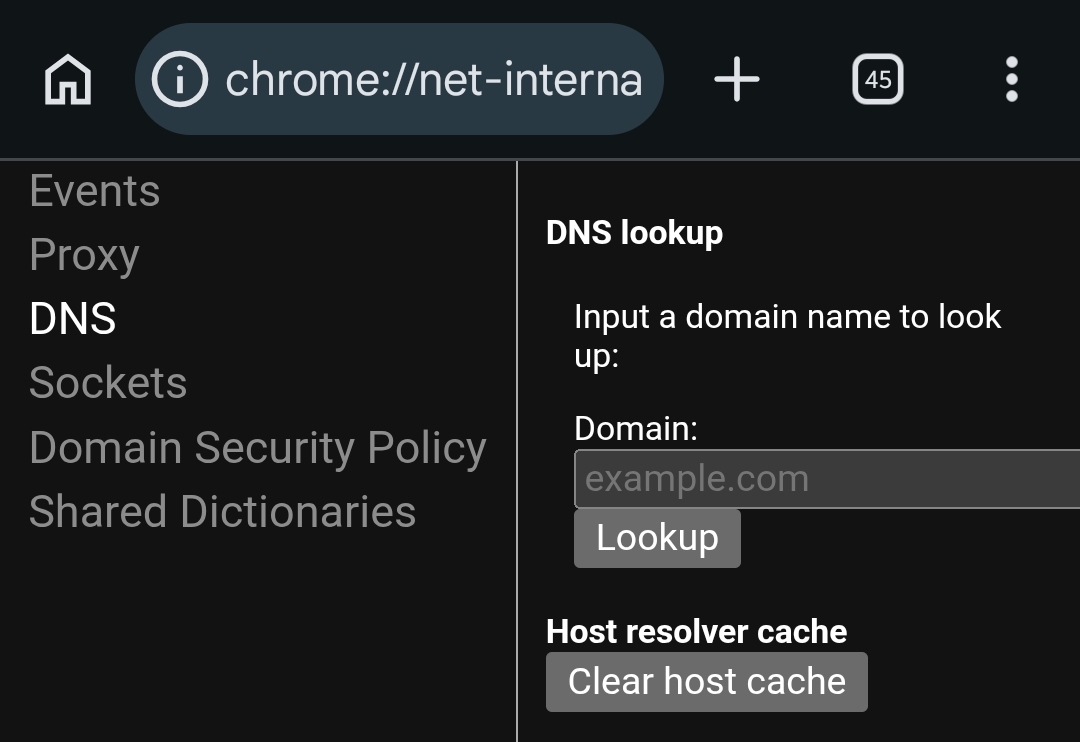
Steps to flush Chrome’s DNS cache:
- Open Chrome and type
chrome://net-internals/#dnsin the address bar. Press Enter. - Click the Clear host cache button.
- Now type
chrome://net-internals/#socketsin the address bar. Press Enter. - Click Flush socket pools.
- Restart Chrome completely — close every window, not just the tab.
After clearing the DNS cache, navigate to chrome://net-internals/#sockets and click Flush socket pools. Chrome sometimes maintains active or cached connections even after DNS has been cleared. Flushing the sockets ensures Chrome reconnects using fresh DNS resolutions. Performing both steps together solves issues such as websites not loading, incorrect redirects, DNS_PROBE errors, and SSL-related problems caused by outdated IP addresses stored in Chrome’s memory.
PRO TIP: Chrome’s cache is separate from your OS’s DNS cache. Flushing Chrome’s internal DNS does not flush your system-level DNS. If the problem persists after Step 4, proceed to Step 5.
Step 5 — Flush the OS-Level DNS Cache
Most guides stop at Chrome’s built-in DNS flush and never mention this step. That gap is why some users stay stuck.
On Windows 11 or Windows 10:
- Press Windows + S and search for Command Prompt.
- Right-click Command Prompt and select Run as administrator.
- Type
ipconfig /flushdnsand press Enter. - You see the message: “Successfully flushed the DNS Resolver Cache.”
- Restart your browser and test the failing site.
On macOS Ventura or later:
- Open Terminal from Applications > Utilities.
- Type
sudo dscacheutil -flushcache; sudo killall -HUP mDNSResponderand press Enter. - Enter your administrator password when prompted.
- No confirmation message appears — that is normal. Restart Chrome.
On Windows, open Command Prompt and run ipconfig /flushdns. On Mac, open Terminal and run dscacheutil -flushcache; sudo killall -HUP mDNSResponder. On Linux, restart the nscd service with sudo service nscd restart or sudo systemctl restart systemd-resolved.
Step 6 — Disable Extensions One by One
To fix your connection error or loading issue, you may need to disable extensions. It is recommended to disable all extensions. If this solves your connection or loading issue, re-enable your extensions one at a time to identify which extension is causing the problem.
Steps to disable extensions in Chrome:
- Type
chrome://extensions/in the address bar and press Enter. - Toggle off every extension listed on the page.
- Test the failing website.
- If the site loads, toggle extensions back on one at a time. Test after each toggle.
- The last extension you enabled before the site stopped loading is the culprit. Leave it disabled or uninstall it.
Some browser extensions or VPN services can interfere with DNS resolution. Security extensions, ad blockers, and VPN extensions are the most common offenders.
Step 7 — Create a New Chrome Profile
This step appears in almost no other guide. It is non-destructive — your existing profile stays intact — and it isolates profile corruption as a cause without forcing a full Chrome reset.
- Click your profile avatar in the top-right corner of Chrome.
- Click Add at the bottom of the profile menu.
- Select Continue without an account to create a local profile.
- Chrome opens a fresh window with a clean profile. Try the failing website.
If the site loads in the new profile, your original Chrome profile has corrupted data or a conflicting setting. You can gradually move bookmarks and saved passwords using Chrome’s export tools rather than resetting everything at once.
Step 8 — Change Your DNS Server
Your ISP assigns a DNS server by default. Using your ISP’s default DNS servers can sometimes cause errors. Switching to public DNS servers like Google DNS or Cloudflare DNS can improve resolution and stability.
Switch to Google Public DNS on Windows:
- Open Settings > Network and Internet > Advanced network settings.
- Click your active connection, then Edit.
- Switch DNS to Manual.
- Under IPv4 Preferred DNS, enter
8.8.8.8. Under Alternate DNS, enter8.8.4.4. - Click Save, then restart Chrome and test the site.
Switch to Cloudflare DNS (1.1.1.1):
Use 1.1.1.1 as your preferred DNS and 1.0.0.1 as the alternate. Cloudflare’s DNS is consistently one of the fastest globally and a strong alternative when Google DNS does not resolve the issue.
Step 9 — Update Chrome
If the issue of Chrome not loading pages is caused by a glitch in the Android System Webview function, Google recommends updating Chrome after updating the System Webview. Updating Chrome is a reliable way to fix the problem of a site not opening in Chrome.
Steps to update Chrome on desktop:
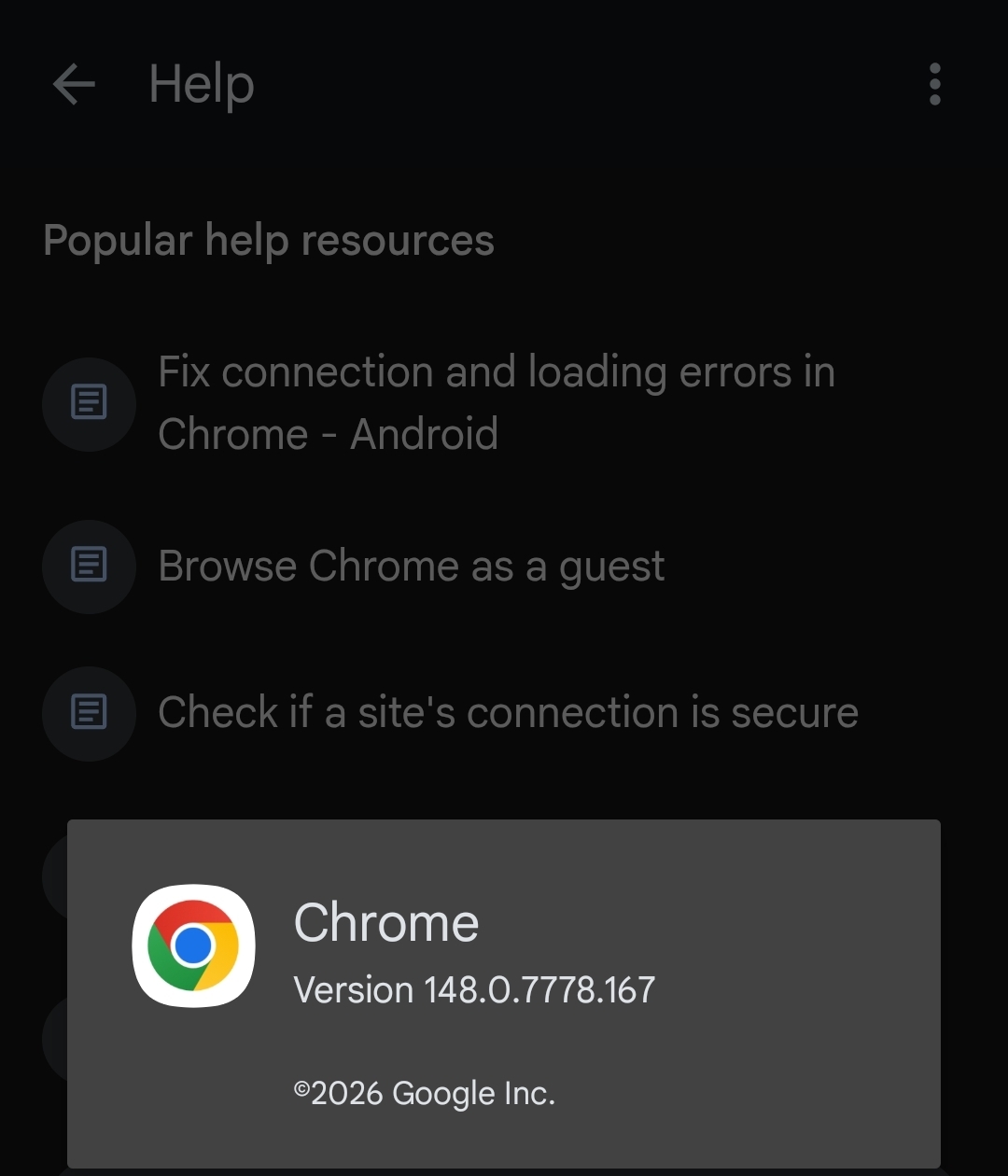
- Open Chrome and type
chrome://settings/helpin the address bar. - Chrome checks for updates automatically on this page.
- If an update is available, it downloads and installs it.
- Click Relaunch to restart Chrome with the update applied.
Outdated drivers or browser versions can cause connectivity issues. Keep your system and browser updated for optimal performance.
Step 10 — Reset Chrome Settings
Resetting Chrome removes custom settings, disables extensions, and clears startup pages. It does not delete your bookmarks, passwords, or synced data.
You can reset Chrome to default settings. Learn how to reset Chrome settings to default. Here is the exact path:
- Open Chrome and type
chrome://settings/resetin the address bar. - Click Restore settings to their original defaults.
- Read the confirmation dialog — it lists what gets cleared.
- Click Reset settings.
- Restart Chrome and test the failing websites.
If none of the above steps work, resetting Chrome to default settings might help resolve configuration issues causing DNS errors.
Step 11 — Disable Antivirus or Firewall Temporarily
Disable the antivirus or firewall software and try accessing the website. If the error disappears, your security software is to blame.
This is the last step for a reason — you should never run your device without security software longer than needed. Disable it for 60 seconds, test the site, and re-enable immediately.
If disabling security software fixes the problem, do not leave your antivirus off. Instead, open your security software’s settings and add the failing website to its whitelist or allowed sites list.
Public or office networks often restrict access to websites with specific content. This restriction can manifest as the same error. You may see the error on your end if you currently use such a network. If you are on a corporate network, contact your IT department before disabling any security software.
Comparison — Browser-Side vs. Network-Side Causes
Use this table to identify which category your problem falls into before running fixes. Starting with the right category saves time.
| Symptom | Likely Layer | First Fix to Try |
|---|---|---|
| One site fails, others load fine | Browser/DNS | Steps 3 and 4 (cache + DNS flush) |
| Same site fails in all browsers | Network or site | Steps 1 and 8 (router + DNS change) |
| Site loads in Incognito, not normal Chrome | Browser extension | Step 6 (disable extensions) |
| Site loads on mobile data, not home Wi-Fi | Home network | Step 1 (router reboot) |
| Site loads for others, not you | ISP or DNS block | Steps 5 and 8 (OS DNS flush + change DNS) |
| Error began after installing an app | Browser extension | Step 6 (disable extensions) |
| Error began after Chrome update | Chrome bug | Step 10 (reset Chrome) |
| All sites fail, not just one | Internet connection | Step 1 only |
Common Problems and How to Fix Them
DNS_PROBE_FINISHED_NXDOMAIN Error
Problem: Chrome displays “DNS_PROBE_FINISHED_NXDOMAIN” when you try to open a specific website.
Cause: Chrome stores DNS data temporarily to speed up browsing. Outdated or corrupted cache entries cause this error. The domain name in the address bar cannot be resolved to an IP address.
Fix:
- Open Chrome and go to
chrome://net-internals/#dns. - Click Clear host cache.
- Go to
chrome://net-internals/#socketsand click Flush socket pools. - Open Command Prompt as administrator (Windows) and run
ipconfig /flushdns. - Restart Chrome and retry the site.
- If the error persists, switch your DNS to Google Public DNS
8.8.8.8/8.8.4.4using Step 8 above.
Problem: “This Site Can’t Be Reached” — only on your home network, not on mobile data.
Cause: IP addresses periodically change, and DHCP is responsible for their renewal. Sometimes the IP may not renew properly, causing connectivity issues with some websites. You can fix this by renewing your IP manually.
Fix:
- Open Command Prompt as administrator on Windows.
- Run
ipconfig /release. - Run
ipconfig /renew. - Restart Chrome.
On macOS, open System Settings > Network, select your active connection, click Details, go to TCP/IP, and click Renew DHCP Lease.
Problem: Website loads in Chrome on another device but not on your PC, and all other troubleshooting steps have failed.
Cause: Your Chrome profile has corrupted data — settings, cached certificates, or stored site permissions that conflict with the target website’s server response.
Fix:
- Follow Step 7 above to create a new Chrome profile.
- Test the failing site in the new profile.
- If the site loads, export your bookmarks from your old profile via Chrome Menu > Bookmarks > Export bookmarks.
- Export saved passwords from
chrome://settings/passwords. - Import both into the new profile.
- Delete the old corrupted profile from the profile switcher menu.
Frequently Asked Questions About Websites Not Opening in Browser
Q: Why do some websites open and others do not open on the same browser?
A: When some websites not opening in browser while others load fine, the problem is scoped to specific DNS entries, stored cookies, browser extensions interfering with certain domains, or the target website itself being temporarily unreachable. Start with Step 2 (Incognito mode) and Step 4 (DNS flush) to identify the layer causing the failure.
Q: How do I fix Chrome not loading pages on mobile?
A: On Android, open Chrome and go to chrome://net-internals/#dns in the address bar. Tap Clear host cache. Then go to Chrome Menu (three dots) > History > Clear browsing data, set the time range to All time, check Cached images and files and Cookies, and tap Clear data. Restart Chrome. This method works on Windows 10, Windows 11, macOS, Linux, and Android devices. The interface may look slightly different on mobile, but the steps remain the same.
Q: Will clearing browser cache fix websites that are not opening?
A: Clearing cache fixes the problem when the cause is stale or corrupted data stored in Chrome from a previous visit. It does not fix problems caused by a downed server, DNS misconfigurations, or extension conflicts. If clearing cache alone does not work, follow it with the DNS flush in Step 4.
Q: Why does a website open in Firefox but not in Chrome?
A: Unlike Chrome, Firefox does not indicate various issues with a single error message. Instead, different problems are marked by different messages. If a site loads in Firefox but not Chrome, the problem is Chrome-specific — most likely an extension, a corrupted Chrome profile, or a Chrome-specific cache entry. Run Steps 6 and 7 in this guide.
Q: Does flushing DNS delete any personal data?
A: No. Flushing Chrome’s DNS only clears the browser’s internal DNS cache, not your system-wide DNS. It does not affect saved logins, history, or bookmarks. It is one of the safest troubleshooting steps in this guide.
Q: What does it mean when Chrome says “Aw, Snap!”?
A: In Chrome, the “Aw, Snap!” error message indicates a connection or loading issue when the browser tries to establish or maintain a connection with a website or online service. Connection and loading errors can be caused by various factors. Start with reloading the page, then work through Steps 3 and 4 of this guide.
Q: Can a VPN cause some websites not to open in Chrome?
A: Yes. VPN extensions and apps reroute your DNS queries, and a misconfigured or overloaded VPN server can cause specific sites to fail while others load fine. Disable your VPN, test the failing site, and re-enable if the problem disappears. If the VPN is the cause, switch VPN servers or contact your VPN provider.
Your Next Move After Running These Fixes
Run through the steps in the order shown. Most users solve the problem at Step 3 or Step 4. If you reach Step 11 and the site still refuses to load, the issue is almost certainly the website itself, a regional block by your ISP, or a corrupted Chrome installation that requires a full uninstall and reinstall.
For a full Chrome reinstall, back up your bookmarks and passwords first at chrome://bookmarks and chrome://settings/passwords. Uninstall Chrome through your operating system’s apps manager, download the latest installer from google.com/chrome, and reinstall fresh.
If Chrome errors keep reappearing after updates or on new profiles, the guide on fixing Chrome browsing data errors on Cloudorian covers storage and data-related Chrome failures in detail.
Have a specific website that still refuses to load after running every step in this guide? Drop the site name and the exact error message in the comments. Include which steps you already tried, and we will help you narrow it down.
Discover more from Cloudorian — Android, Samsung & Windows How-To Guides
Subscribe to get the latest posts sent to your email.



