

Tired of Microsoft’s Phone Link limitations? You’re not alone. While it promises seamless phone-PC integration, it often falls short—especially for non-Samsung users—requiring a Microsoft account and lacking advanced features. Fortunately, better alternatives exist. This article dives into five superior apps—AirDroid, Intel Unison, KDE Connect, Samsung Flow, and scrcpy—that outshine Phone Link in functionality, flexibility, and ease of use. Drawing from the latest insights, including XDA’s March 2025 roundup, we’ll explore why these tools are game-changers for connecting your phone and PC today.
READ: How To Use Your Android Phone or iPhone as a Webcam
Why Ditch Phone Link? Understanding the Need for Alternatives
Phone Link’s shortcomings drive the search for better solutions. Microsoft’s Phone Link, preinstalled on Windows 11, aims to sync your phone and PC but stumbles with limited compatibility and clunky features. Let’s break down why users are moving on.
The Limitations of Phone Link
Phone Link restricts advanced features like screen mirroring to select Samsung and HONOR devices. For most Android users, it’s basic—offering notifications, texts, and calls but little else. It demands a Microsoft account, raising privacy concerns, and recent updates (October 2024) removed the ability to unlink devices easily, frustrating users further.
The Demand for Flexibility
Users crave apps that work across platforms (Android, iOS, Windows, macOS) without brand-specific biases. Alternatives like those in XDA’s list deliver broader compatibility, account-free options, and robust tools—think file transfers, screen control, and more—making them ideal replacements.
A Shift in User Priorities
Today’s users prioritize speed, security, and customization. Phone Link’s rigid design doesn’t keep up. The apps we’ll explore meet these needs, offering intuitive interfaces and features tailored to 2025’s tech-savvy crowd.
Getting Started: What Makes a Great Phone-PC Connection App?
A great app balances ease of use with powerful features. Before diving into our top five, let’s define what sets the best tools apart for beginners and pros alike.
Key Features to Look For
- Cross-Platform Support: Works with Android, iOS, Windows, and macOS.
- Seamless Connectivity: Wi-Fi, Bluetooth, or USB options.
- Functionality: File sharing, screen mirroring, notifications, and more.
- Privacy: Minimal account requirements and secure data handling.
Ease of Setup for Beginners
Beginners need simple pairing processes—think QR codes or one-click connections. Apps like AirDroid and KDE Connect excel here, requiring minimal tech know-how to get started.
Why These Apps Stand Out
The five apps we’ll cover—sourced from XDA’s latest recommendations—offer superior versatility over Phone Link. They cater to diverse needs, from casual texting to advanced screen control, ensuring there’s something for everyone.
#1: AirDroid – The All-in-One Powerhouse
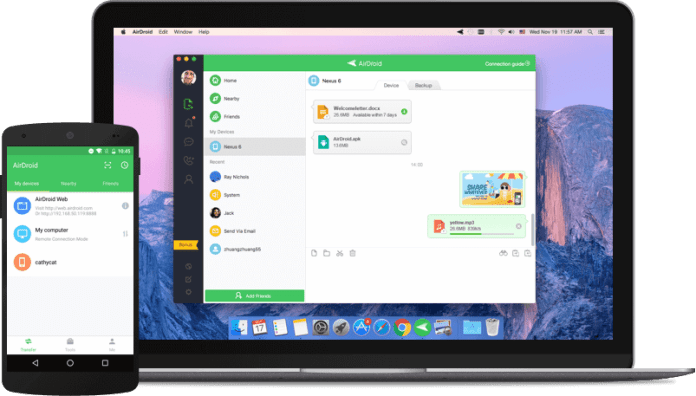
AirDroid is your go-to for comprehensive phone-PC integration. Launched years ago, it’s evolved into a robust tool for 2025 users, supporting Android, iOS, Windows, and macOS.
What Is AirDroid?
AirDroid lets you mirror your phone screen, manage files, and control apps remotely. Its web version requires no account, while the desktop app unlocks deeper features like call handling.
Standout Features
- Screen Mirroring: View and control your phone from your PC.
- File Management: Drag-and-drop files effortlessly.
- Web Access: Use it account-free via a browser.
- Cross-Platform: Works with iOS too, unlike Phone Link’s Android focus.
Why It Beats Phone Link
Unlike Phone Link’s Samsung-centric mirroring, AirDroid supports most devices. Its no-account web option also sidesteps privacy gripes, and XDA notes its free tier packs more punch than Microsoft’s offering.
How to Get Started
Download AirDroid from its site or app store, pair via QR code, and start mirroring or transferring files in minutes. Beginners love its simplicity; experts appreciate its depth.
#2: Intel Unison – The Sleek Newcomer

Intel Unison delivers a polished, modern sync experience. Introduced recently, it’s gaining traction for its clean design and broad device support.
What Is Intel Unison?
Intel Unison connects Android and iOS devices to Windows PCs, offering notifications, calls, texts, and file transfers. It’s lightweight yet powerful, rivaling Phone Link’s core features.
Standout Features
- Unified Interface: Intuitive across devices.
- Photo Sync: Access your phone’s gallery instantly.
- Reliability: Stable connections praised by XDA testers.
- No Brand Bias: Works equally well with any phone.
Why It Beats Phone Link
XDA’s team, who’ve used it extensively, highlight its smoother performance and lack of Microsoft account dependency. It’s less restrictive and feels fresher than Phone Link’s dated framework.
Setup Made Simple
Install Intel Unison from the Microsoft Store, scan a QR code from your phone, and you’re linked. It’s a breeze for novices, with enough features to satisfy power users.
#3: KDE Connect – The Open-Source Gem

KDE Connect offers account-free, local syncing perfection. This free, open-source app is a favorite for privacy buffs and DIY enthusiasts.
What Is KDE Connect?
KDE Connect links your phone and PC over a local network, enabling file sharing, notifications, and remote control—no cloud or account needed.
Standout Features
- Privacy First: No data leaves your network.
- Two-Way Control: Manage your PC from your phone too.
- Clipboard Sharing: Copy-paste across devices seamlessly.
- Open Source: Customizable and community-supported.
Why It Beats Phone Link
Phone Link’s cloud reliance and account demands pale against KDE Connect’s local, free approach. XDA praises its feature set, which rivals premium apps without the cost.
Getting Started
Download KDE Connect for your phone (Google Play/App Store) and PC (Windows store or site), connect via Wi-Fi, and enjoy instant syncing. It’s beginner-friendly yet endlessly tweakable.
#4: Samsung Flow – The Galaxy Ace
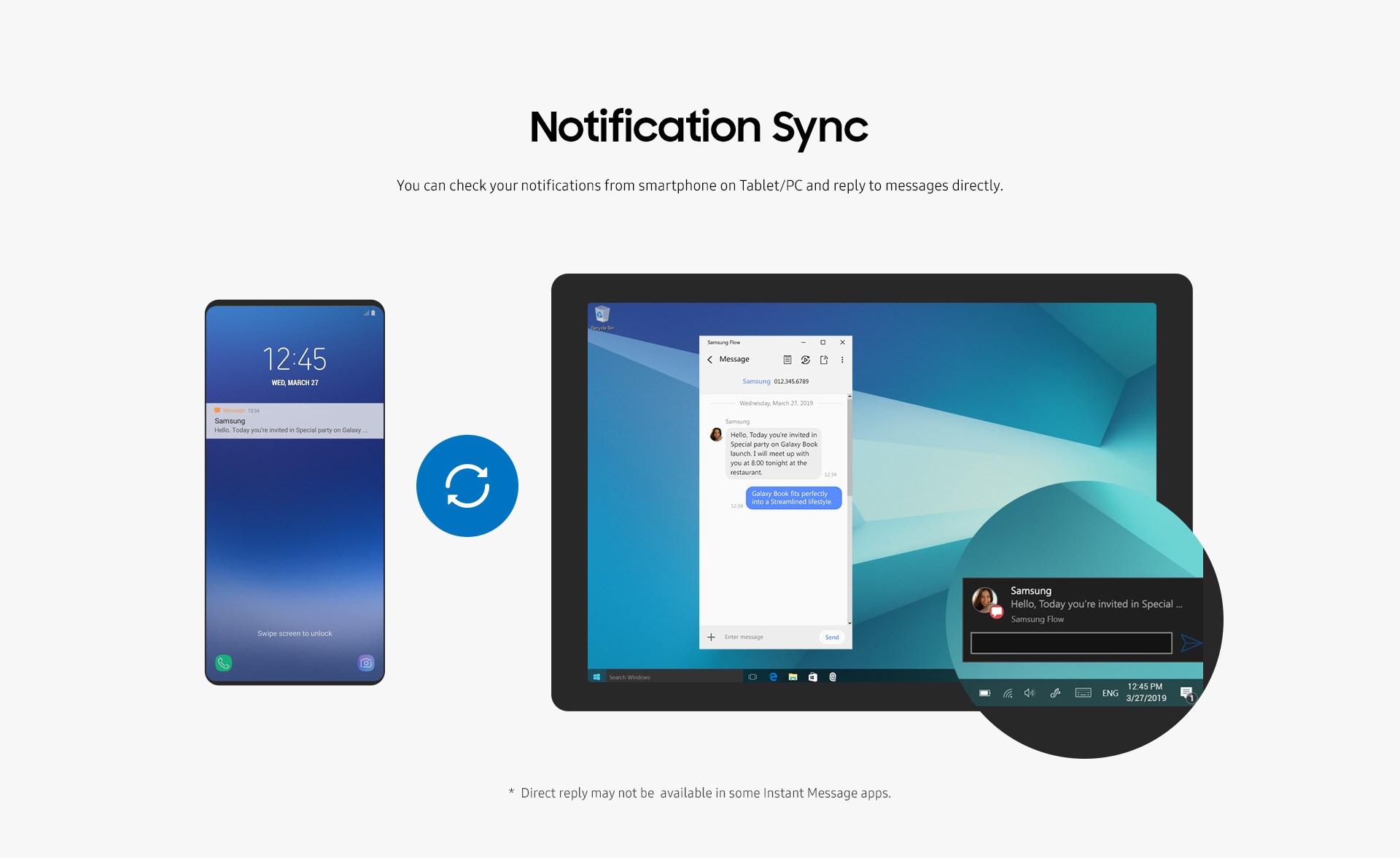
Samsung Flow shines for Galaxy users seeking deep integration. Tailored for Samsung ecosystems, it’s a niche but powerful alternative.
What Is Samsung Flow?
Samsung Flow syncs Galaxy phones and tablets with Windows PCs, offering screen mirroring, file transfers, and notifications via Wi-Fi, Bluetooth, or USB.
Standout Features
- Low Latency: Wired or wireless, it’s fast.
- Screen Mirroring: Full control of your Galaxy device.
- Display Options: Adjust quality (low, medium, high).
- Samsung Sync: Perfect for Galaxy loyalists.
Why It Beats Phone Link
While Phone Link favors Samsung, Flow offers richer features like adjustable mirroring quality and broader connection options. XDA calls it a “better alternative” for Samsung fans.
How to Use It
Install Samsung Flow from the Galaxy Store and Microsoft Store, pair via Bluetooth or QR code, and dive in. It’s intuitive for Galaxy owners, less so for others.
#5: scrcpy – The Expert’s Choice

scrcpy is a lightweight, advanced tool for power users. This open-source gem focuses on screen mirroring with minimal fuss.
What Is scrcpy?
scrcpy (screen copy) mirrors Android screens to PCs via USB or Wi-Fi, offering low-latency control without extra bloat. It’s command-line-based but highly effective.
Standout Features
- High Performance: Near-zero lag mirroring.
- No App Needed: Runs directly from your PC.
- Customizable: Tweaks via command-line options.
- Free: No cost, no ads, no accounts.
Why It Beats Phone Link
Phone Link can’t match scrcpy’s speed or simplicity for mirroring. XDA lauds its efficiency, ideal for gamers or developers needing precise control.
Setup for Pros
Download scrcpy from GitHub, enable USB debugging on your Android, connect via USB, and run the executable. It’s techy but rewarding for experts.
Comparing the Top 5: Which App Suits You?
Each app excels in unique ways—here’s how they stack up. This comparison helps you pick the perfect tool.
| App | Best For | Platforms | Key Feature | Ease of Use | Cost |
|---|---|---|---|---|---|
| AirDroid | All-in-one users | Android, iOS, Win, macOS | Screen mirroring | High | Free/Paid |
| Intel Unison | Modern simplicity | Android, iOS, Windows | Photo sync | Very High | Free |
| KDE Connect | Privacy enthusiasts | Android, iOS, Win, Linux | Local syncing | High | Free |
| Samsung Flow | Galaxy owners | Android (Galaxy), Windows | Adjustable mirroring | Medium | Free |
| scrcpy | Power users | Android, Win, macOS, Linux | Low-latency mirroring | Low | Free |
Choosing Based on Needs
- Casual Use: Intel Unison’s simplicity wins.
- Privacy: KDE Connect is unmatched.
- Galaxy Fans: Samsung Flow is your pick.
- Tech Experts: scrcpy offers ultimate control.
- Versatility: AirDroid covers all bases.
Advanced Tips: Maximizing Your Phone-PC Connection
Take your app experience to the next level with these pro tips. Now that you’ve chosen, here’s how to optimize.
Boosting Performance
- Stable Wi-Fi: Use 5GHz bands for faster syncing.
- Wired Options: USB connections (e.g., scrcpy, Samsung Flow) cut lag.
- Close Background Apps: Free up resources on both devices.
Security Best Practices
- Local Networks: Stick to KDE Connect for no-cloud safety.
- Update Regularly: Keep apps current to patch vulnerabilities.
- Permissions: Limit access to only what’s needed (e.g., AirDroid’s settings).
Customizing for Power Users
- KDE Connect Plugins: Add features like remote mouse control.
- scrcpy Commands: Adjust resolution or frame rate via terminal.
- AirDroid Premium: Unlock call recording or extra storage.
The Future of Phone-PC Connectivity in 2025
Phone-PC apps are evolving fast—here’s what’s next. As we hit April 2025, trends point to even tighter integration.
Emerging Trends
- AI Integration: Expect smarter syncing with AI-driven features.
- Cross-OS Growth: More apps will bridge Android, iOS, and Windows seamlessly.
- Privacy Focus: Local, account-free options like KDE Connect will rise.
How These Apps Fit In
AirDroid and Intel Unison lead with broad support, while scrcpy and KDE Connect cater to niche, privacy-first crowds. Samsung Flow hints at brand-specific futures, per XDA’s insights.
Staying Ahead
Keep apps updated and explore new releases. The pace of innovation means today’s best could be tomorrow’s baseline.
Conclusion: Your Phone-PC Connection, Upgraded
Ditching Phone Link opens a world of better options. AirDroid, Intel Unison, KDE Connect, Samsung Flow, and scrcpy outclass Microsoft’s tool in flexibility, features, and user control. Whether you’re a beginner seeking simplicity or an expert craving customization, one of these five fits your needs. Start with Intel Unison for ease, dive into scrcpy for power, or pick based on your device and priorities. Upgrade your workflow today—your phone and PC deserve it.
Discover more from Cloudorian - Tech News, Reviews, Deals, and How-To's
Subscribe to get the latest posts sent to your email.



