
Key Takeaway:
- Deleting your Facebook Watch history is important for maintaining privacy and control over your viewing habits. It ensures that your watch history is not accessible to others and prevents targeted advertising based on your viewing preferences.
- To delete Facebook Watch history on mobile, open the Facebook app, go to the menu, select “Settings & Privacy,” then choose “Activity Log.” From there, find and tap on “Filter,” select “Categories,” and choose “Videos You’ve Watched.” Simply tap on the videos you want to delete and select “Delete” to permanently remove them from your watch history.
- To delete Facebook Watch history on your desktop, log in to your Facebook account, click on the drop-down menu in the top right corner, go to “Settings,” and select “Activity Log.” On the left-hand side, click on “Filter” and choose “Videos.” Scroll through the list of videos and click on the circle next to the video you want to remove, then click “Delete” to permanently delete it from your watch history.
Facebook Watch is a popular feature that allows users to watch videos on the platform. However, users may want to delete their watch history for various reasons. In this article, we will explore how to permanently delete Facebook Watch history on both mobile and desktop devices. By following these steps, users can ensure their privacy and control over their viewing habits. It is important to note that deleting the watch history will remove all records of previously watched videos, making it impossible to retrieve them later. So, let’s dive in and learn how to delete Facebook Watch history permanently.
Why Should You Delete Your Facebook Watch History?
Deleting your Facebook Watch history is a prudent action to take in safeguarding your online privacy. By doing so, you can protect your personal preferences and prevent targeted advertisements based on previous viewing habits.
Moreover, deleting this history ensures that your watch history is not accessible by others who may have access to your Facebook account. Taking control of your digital footprint by erasing your Facebook Watch history is an effective measure to enhance your privacy and maintain control over your online presence.
By deleting your Facebook Watch history, you eliminate the risk of potential privacy breaches. Stored watch history may contain sensitive information that can be used for targeted advertising or other purposes without your consent. Therefore, taking the step to permanently delete this history is crucial in maintaining your privacy and preventing unwanted profiling.
Furthermore, deleting your Facebook Watch history is essential in maintaining a personalized and unbiased online experience. By removing the history of your previously watched videos, you ensure that your future recommendations are not influenced by past preferences, allowing you to discover new content that aligns with your current interests.
Additionally, deleting your Facebook Watch history can help declutter your account and make it easier to navigate. As you continue to use the platform, your watch history can accumulate and hinder your ability to find and manage your favourite videos. Hence, regularly clearing this history is advantageous in organizing your account and improving your user experience.
Deleting your Facebook Watch history is straightforward and can be done on both mobile and desktop platforms. It allows you to maintain greater control over your online presence, protect your privacy, and enjoy a more personalized and unbiased browsing experience.
How to Delete Facebook Watch History on Mobile
To delete your Facebook watch history on mobile, follow these steps:
- Sign in: Log into your account on Facebook then tap the icon for your profile located at the top right.
- Navigate to Settings: Go to the bottom of the page, and you’ll find an option ” Settings & Privacy.” Click on it, and choose Settings from the menu of choices.

- Access Your Activity: Scroll to the bottom until you come across you are in the ” Your Activity” section. Tap to ” Manage your activity” just below it.
- Clear Watch History: Then, you’ll be able to get the list of the videos you’ve seen up to this point.

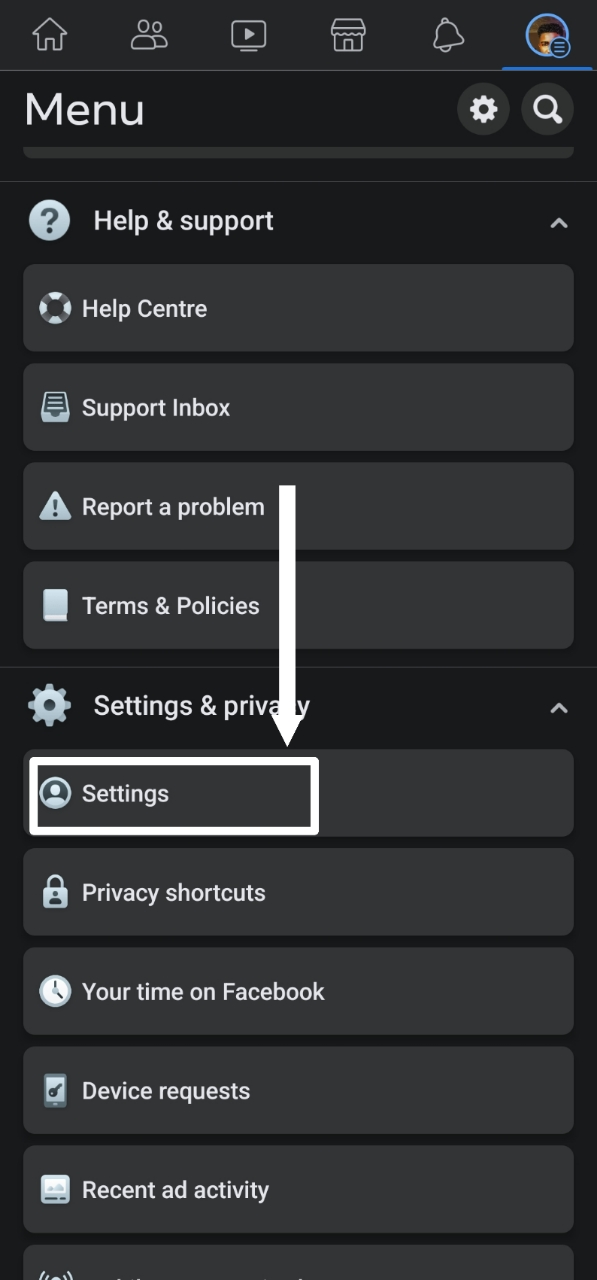
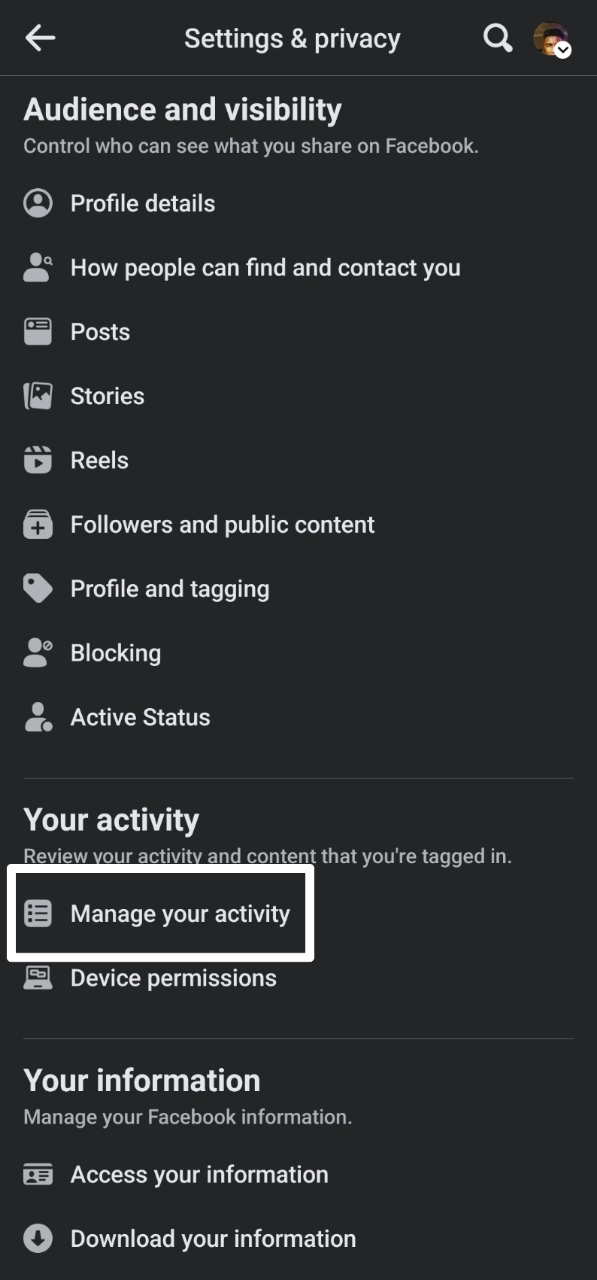

You’ll be able to delete all of the history starting from the beginning or just delete a specific video that you enjoy.
By following these steps, you can easily delete your Facebook watch history on mobile. It’s important to note that clearing your watch history will remove your viewing activity and make it less personalized. By clearing your watch history, Facebook will also have less information to recommend videos based on your previous watching habits. Deleting your watch history is a helpful way to maintain privacy and ensure that your activity on Facebook remains confidential.
How to Delete Facebook Watch History on Desktop
To remove your Facebook watch history on your desktop, follow these steps:
- Open the Facebook website on your desktop browser and log in to your account.
- Click on the menu icon (three horizontal lines) at the top-right corner of the screen.
- From the drop-down menu, select “Settings & Privacy” and then click on “Settings”.
- In the left-hand sidebar, click on “Your Facebook Information”.
- Under the “Your Facebook Information” section, click on “View” next to “Off-Facebook Activity”.
- On the “Off-Facebook Activity” page, you will see a list of websites and apps that have sent your activity to Facebook. Scroll down and find “Facebook Watch”.
- Click on the three-dot menu icon next to “Facebook Watch” and select “Manage Activity”.
- On the “Manage Activity” page, click on the “Delete All” button at the top-right corner to delete your entire Facebook watch history.
- A pop-up message will appear asking if you want to delete all your activity. Click on “Delete” to confirm.
Remember, deleting your Facebook watch history on your desktop will remove all the videos you have watched and recommendations you have received. This process cannot be reversed, so make sure you want to delete it before proceeding.
Pro Tip: Regularly clearing your watch history can help protect your privacy and prevent unwanted recommendations based on your previous video views.
Conclusion
The steps provided in this article can help you permanently delete your Facebook Watch history on both mobile and desktop platforms. By following these instructions, you can ensure that your watch history is completely erased and no longer accessible. Additionally, this process allows you to maintain your privacy and control over your online activities. For a seamless experience, it is recommended to regularly clear your watch history. Keep in mind that deleting your watch history will not affect your Facebook account or any other information associated with it. Implementing this pro tip will help you effectively manage and remove your Facebook Watch history.
Five Facts on How to Delete Facebook Watch History Permanently on Mobile & Desktop:
- ✅ Facebook keeps a record of your activities, including the videos you’ve watched. (Source: Team Research)
- ✅ Deleting your Facebook watch history can help protect your privacy and prevent targeted advertising. (Source: Team Research)
- ✅ Clearing your watch history can also free up storage space on your mobile device. (Source: Team Research)
- ✅ To delete Facebook watch history on mobile, go to Settings & Privacy, choose Settings, access the Activity log, and tap on Videos you’ve watched. (Source: Team Research)
- ✅ On desktop, you can delete Facebook watch history by going to Settings & Privacy, selecting Your Facebook information, clicking on Activity log, and choosing Videos you’ve watched. (Source: Team Research)
FAQs on How To Delete Facebook Watch History Permanently On Mobile & Desktop
Q: Does Facebook keep a watch history of the videos I’ve seen?
A: Yes, Facebook keeps a watch history of all videos you’ve seen on the social media platform.
Q: Can I restore the deleted Facebook watch history?
A: No, there’s no way through which you can restore the deleted data, whether it is posts or the history of watched videos.
Q: Is the process of deleting Facebook watch history the same for mobile and desktop?
A: The process is somehow similar, as you’ll be using the Facebook app. But, you may experience a bit of variation based on the device you’re using (Android phone, iPad, iPhone, Windows, or Mac).
A: Facebook has a history of privacy issues. Your watch history can be used to show you targeted advertisements, and other apps on your phone may send your sensitive information to Facebook without your consent.
Q: Why is it important to delete Facebook watch history?
A: Deleting Facebook watch history is important for privacy concerns and to free up storage space on your device. Keeping a large watch history can take up valuable storage on your phone, causing the need to clear the Facebook cache from your device.
Q: Can I delete specific watched videos on Facebook?
A: Yes, you can delete specific watched videos on Facebook. In the activity log, you can select individual videos and delete them. Additionally, you have the option to clear the entire video watch history if desired.
{
“@context”: “https://schema.org”,
“@type”: “FAQPage”,
“mainEntity”: [
{
“@type”: “Question”,
“name”: “Does Facebook keep a watch history of the videos I’ve seen?”,
“acceptedAnswer”: {
“@type”: “Answer”,
“text”: “Yes, Facebook keeps a watch history of all videos you’ve seen on the social media platform.”
}
},
{
“@type”: “Question”,
“name”: “Can I restore the deleted Facebook watch history?”,
“acceptedAnswer”: {
“@type”: “Answer”,
“text”: “No, there’s no way through which you can restore the deleted data, whether it is posts or the history of watched videos.”
}
},
{
“@type”: “Question”,
“name”: “Is the process of deleting Facebook watch history the same for mobile and desktop?”,
“acceptedAnswer”: {
“@type”: “Answer”,
“text”: “The process is somehow similar, as you’ll be using the Facebook app. But, you may experience a bit of variation based on the device you’re using (Android phone, iPad, iPhone, Windows, or Mac).”
}
},
{
“@type”: “Question”,
“name”: “What are the privacy concerns related to Facebook watch history?”,
“acceptedAnswer”: {
“@type”: “Answer”,
“text”: “Facebook has a history of privacy issues. Your watch history can be used to show you targeted advertisements, and other apps on your phone may send your sensitive information to Facebook without your consent.”
}
},
{
“@type”: “Question”,
“name”: “Why is it important to delete Facebook watch history?”,
“acceptedAnswer”: {
“@type”: “Answer”,
“text”: “Deleting Facebook watch history is important for privacy concerns and to free up storage space on your device. Keeping a large watch history can take up valuable storage on your phone, causing the need to clear the Facebook cache from your device.”
}
},
{
“@type”: “Question”,
“name”: “Can I delete specific watched videos on Facebook?”,
“acceptedAnswer”: {
“@type”: “Answer”,
“text”: “Yes, you can delete specific watched videos on Facebook. In the activity log, you can select individual videos and delete them. Additionally, you have the option to clear the entire video watch history if desired.”
}
}
]
}
Discover more from Cloudorian — Android, Samsung & Windows How-To Guides
Subscribe to get the latest posts sent to your email.
